Azure Container Apps – Private Networking with Terraform is the full instruction guide for deploying a private Azure Container Apps environment using Terraform. By default, Azure Container Apps are publicly accessible via the internet. In enterprise and production scenarios, however, you often need your apps to be reachable only from within your Azure Virtual Network — with zero exposure to the public internet.
Check out the full Azure Container App Series for more in-depth guides, best practices, and real-world architecture examples.
📁 Full source code: github.com/azure-way/terraform-container-apps/container_apps_private
What You Will Learn
- How to configure
internal_load_balancer_enabled = trueon a Container App Environment - Why setting Azure Container App as private is not a way to go! It’s a common mistake from the beginning of the journey, but it is not the right way to make your Container Apps private. In this article, you will learn how to do it properly.
- How to inject a Container Apps Environment into an Azure Virtual Network
- Why a Private DNS Zone is mandatory and how to set it up correctly with Terraform
- How to deploy a Windows jump host VM to validate private connectivity
- The complete, production-ready Terraform code for all resources
Architecture Overview
The architecture is very easy. There is a virtual network with two subnets. The first subnet is for the Container Apps environment, and the second subnet is for a jump host VM. Then Azure Container Enviroment is created in the Virtual Network, together with Azure Load Balancer which is an entry point for the Azure Container Apps.
Resources created:
| Resource | Purpose |
|---|---|
| Azure Resource Group | Container for all resources |
| Log Analytics Workspace | Monitoring and diagnostics |
| Azure Load Balancer | Request routing |
Azure Virtual Network (40.0.0.0/16) |
Network isolation boundary |
App Subnet (40.0.0.0/27) |
Hosts the ACA Environment infrastructure |
VM Subnet (40.0.2.0/27) |
Hosts the jump host for testing |
| Container App Environment | Private ACA environment (internal LB) |
| Container App | The actual workload (Hello World) |
| Private DNS Zone | DNS resolution for ACA within the VNet |
| Private DNS VNet Link | Connects DNS Zone to the VNet |
DNS A record (wildcard *) |
Routes all app FQDNs to the private IP |
| Windows VM (Jump Host) | For testing private app connectivity via RDP |
Why Use a Private Container Apps Environment?
Making your Container Apps environment private is the right choice when:
- You’re building backend APIs that must never be exposed to the internet
- You’re running internal microservices that communicate within a private mesh
- You need to meet compliance and regulatory requirements (e.g., PCI-DSS, ISO 27001, HIPAA) mandating network isolation
- You’re building multi-tier architectures where only a public-facing gateway (e.g., API Management or Application Gateway) should have internet exposure
- You want to eliminate the attack surface of your compute layer entirely
How Does Azure Container Apps Private Networking Work?
When you set internal_load_balancer_enabled = true on an azurerm_container_app_environment, Azure provisions the environment with a private IP address only — no public endpoint is created. The environment is injected into a dedicated subnet inside your VNet.
Common mistake
When you set external_enabled property on the Azure Container App you won’t be able to reach this application OUTSIDE of the Azure Container Apps Enviroment. This flag means that the app is accessible only for the other apps deployd in the environemnt. You can indetify this flag, when the url to the app looks like this: https://t1-app.greenglacier-af6fc287.internal.polandcentral.azurecontainerapps.io where the url then this flag is set to ‘true’: https://t1-app.greenglacier-af6fc287.polandcentral.azurecontainerapps.io
Do you see the difference with the internal part?
Because there is no public DNS entry for a private environment, you are responsible for creating:
- A Private DNS Zone named after the environment’s
default_domain - A VNet link connecting that DNS Zone to your Virtual Network
- A wildcard A record pointing to the environment’s static private IP
This is the most commonly missed step and the #1 cause of failed deployments.
Step-by-Step Terraform Walkthrough
Step 1 — Variables
variable "environment" {
  description = "Name of the environment"
  default     = "t1"
}

variable "location" {
  description = "Primary location of the services"
  default     = "polandcentral"
}

variable "subnet_address_prefix_map" {
  type = map(list(string))
  default = {
    "app" = ["40.0.0.0/27"],   # Min /27 required for ACA
    "vm"  = ["40.0.2.0/26"]
  }
}

variable "subscription-id" {
  description = "Azure subscription ID"
}

variable "spn-client-id" {
  description = "Client ID of the service principal"
}

variable "spn-client-secret" {
  description = "Secret for service principal"
}

variable "spn-tenant-id" {
  description = "Tenant ID for service principal"
}
💡 Key point: The
appsubnet is set to/27(32 addresses). Azure Container Apps requires a minimum of/32— this is a hard platform requirement. A smaller subnet will cause deployment failures. the subnet also must be delagated to the `Microsoft.App/environmentsz
Step 2 — Resource Group and Log Analytics
locals {
  prefix   = var.environment
  location = var.location
}

resource "azurerm_resource_group" "rg" {
  name     = local.prefix
  location = local.location
}

resource "azurerm_log_analytics_workspace" "aca_logs" {
  name                = "${local.prefix}-law"
  location            = azurerm_resource_group.rg.location
  resource_group_name = azurerm_resource_group.rg.name
  sku                 = "PerGB2018"
  retention_in_days   = 30
}
Step 3 — Virtual Network Module
module "virtual_network" {
  source = "./modules/virtual_network"

  resource_group_name = azurerm_resource_group.rg.name
  location            = azurerm_resource_group.rg.location

  name                      = "${local.prefix}-vnet"
  address_space             = ["40.0.0.0/16"]
  subnet_address_prefix_map = var.subnet_address_prefix_map

  prefix = local.prefix
}
The virtual_network module outputs app_subnet_id, vm_subnet_id, and id (VNet ID) — all consumed later in main.tf.
Step 4 — Container App Environment (Private)
This is the most important resource in this configuration:
resource "azurerm_container_app_environment" "aca_env" {
  name                       = "${local.prefix}-aca-env"
  location                   = azurerm_resource_group.rg.location
  resource_group_name        = azurerm_resource_group.rg.name
  log_analytics_workspace_id = azurerm_log_analytics_workspace.aca_logs.id

  infrastructure_subnet_id           = module.virtual_network.app_subnet_id
  infrastructure_resource_group_name = "${local.prefix}-aca-infra"
  internal_load_balancer_enabled     = true

  workload_profile {
    name                  = "Consumption"
    workload_profile_type = "Consumption"
    maximum_count         = 0
    minimum_count         = 0
  }
}
The three properties that make the environment private:
| Property | Value | Effect |
|---|---|---|
infrastructure_subnet_id |
App subnet ID | Injects ACA into your VNet |
infrastructure_resource_group_name |
{prefix}-aca-infra |
Azure-managed resource group for ACA infrastructure nodes |
internal_load_balancer_enabled |
true |
Disables public endpoint — private IP only |
When internal_load_balancer_enabled = true, Azure creates a private static IP (static_ip_address) for the environment. All Container Apps inside it are reachable only from within the VNet.
Step 5 — Container App
resource "azurerm_container_app" "sampleapi" {
  name                         = "${local.prefix}-app"
  container_app_environment_id = azurerm_container_app_environment.aca_env.id
  resource_group_name          = azurerm_resource_group.rg.name
  revision_mode                = "Single"
  workload_profile_name        = "Consumption"

  template {
    container {
      name   = "sampleapi"
      image  = "mcr.microsoft.com/azuredocs/containerapps-helloworld:latest"
      cpu    = 0.25
      memory = "0.5Gi"
    }

    min_replicas = 0
    max_replicas = 5
  }

  ingress {
    allow_insecure_connections = false
    external_enabled           = true
    target_port                = 80

    traffic_weight {
      percentage      = 100
      latest_revision = true
    }
  }
}
❓ Common question: Why is
external_enabled = truein a private environment?In a private ACA environment,
external_enabled = truemeans the app is reachable from anywhere in the VNet (not just within the same environment). It does not mean publicly accessible — the private load balancer at the environment level prevents that. Think of it as “VNet-wide” vs “environment-internal” visibility.
Step 6 — Private DNS Zone (Critical!)
resource "azurerm_private_dns_zone" "example" {
  name                = azurerm_container_app_environment.aca_env.default_domain
  resource_group_name = azurerm_resource_group.rg.name
}

resource "azurerm_private_dns_zone_virtual_network_link" "example" {
  name                  = "${azurerm_container_app_environment.aca_env.name}-link"
  resource_group_name   = azurerm_resource_group.rg.name
  private_dns_zone_name = azurerm_private_dns_zone.example.name
  virtual_network_id    = module.virtual_network.id
}

resource "azurerm_private_dns_a_record" "example" {
  name                = "*"
  zone_name           = azurerm_private_dns_zone.example.name
  resource_group_name = azurerm_resource_group.rg.name
  ttl                 = 300
  records             = [azurerm_container_app_environment.aca_env.static_ip_address]
}
Why all three resources are required:
azurerm_private_dns_zone— Creates a private DNS zone using the ACA environment’sdefault_domain(e.g.,wonderfulbeach-abc123.polandcentral.azurecontainerapps.io)azurerm_private_dns_zone_virtual_network_link— Makes the DNS zone active for the VNet, so VMs and other resources use it automaticallyazurerm_private_dns_a_record(*) — Wildcard record resolving any app hostname in the environment to the single private static IP
⚠️ If you skip these three resources, DNS resolution will fail from your jump host. The Container App’s FQDN will not resolve to any IP address, even though the app is running and healthy.
Step 7 — Jump Host VM
resource "azurerm_public_ip" "public_ip" {
  name                = "jump-host-ip"
  resource_group_name = azurerm_resource_group.rg.name
  location            = azurerm_resource_group.rg.location
  allocation_method   = "Dynamic"
  sku                 = "Basic"
}

resource "azurerm_network_interface" "jump_nic" {
  name                = "${local.prefix}-jump-host-nic"
  location            = azurerm_resource_group.rg.location
  resource_group_name = azurerm_resource_group.rg.name

  ip_configuration {
    name                          = "internal"
    subnet_id                     = module.virtual_network.vm_subnet_id
    private_ip_address_allocation = "Dynamic"
    public_ip_address_id          = azurerm_public_ip.public_ip.id
  }
}

resource "azurerm_windows_virtual_machine" "jump_vm" {
  name                = "${local.prefix}-jumpvm"
  resource_group_name = azurerm_resource_group.rg.name
  location            = azurerm_resource_group.rg.location
  size                = "Standard_D4_v5"
  admin_username      = "adminuser"
  admin_password      = "P@$$w0rd1234!"
  patch_mode          = "AutomaticByPlatform"
  network_interface_ids = [azurerm_network_interface.jump_nic.id]

  os_disk {
    caching              = "ReadWrite"
    storage_account_type = "Standard_LRS"
  }

  source_image_reference {
    publisher = "MicrosoftWindowsServer"
    offer     = "WindowsServer"
    sku       = "2022-datacenter-g2"
    version   = "latest"
  }
}
The jump host sits in the vm subnet and has a public IP for RDP access. Once connected, it can reach the private Container App via the Private DNS Zone.
⚠️ Production security note: The hardcoded password here is for demo purposes only. In production, store VM credentials in Azure Key Vault (covered in Part 7), and restrict RDP (
TCP/3389) with a Network Security Group or use Azure Bastion instead of a public IP.
Deploying with Terraform
cd container_apps_private

# Initialize providers
terraform init

# Preview the plan
terraform plan \
  -var="subscription-id=<your-sub-id>" \
  -var="spn-client-id=<your-client-id>" \
  -var="spn-client-secret=<your-secret>" \
  -var="spn-tenant-id=<your-tenant-id>"

# Apply
terraform apply \
  -var="subscription-id=<your-sub-id>" \
  -var="spn-client-id=<your-client-id>" \
  -var="spn-client-secret=<your-secret>" \
  -var="spn-tenant-id=<your-tenant-id>"
After terraform apply completes, two resource groups are created:
t1— your main resource group (VNet, Log Analytics, DNS Zone, Jump VM, Container App)t1-aca-infra— managed automatically by Azure for the internal Container Apps infrastructure nodes
Testing Private Connectivity
- Get the Jump Host public IP from the Azure Portal (resource group
t1→jump-host-ip) - RDP into the Jump Host using
mstscand the credentials from the Terraform variables - Open a browser inside the VM
- Navigate to
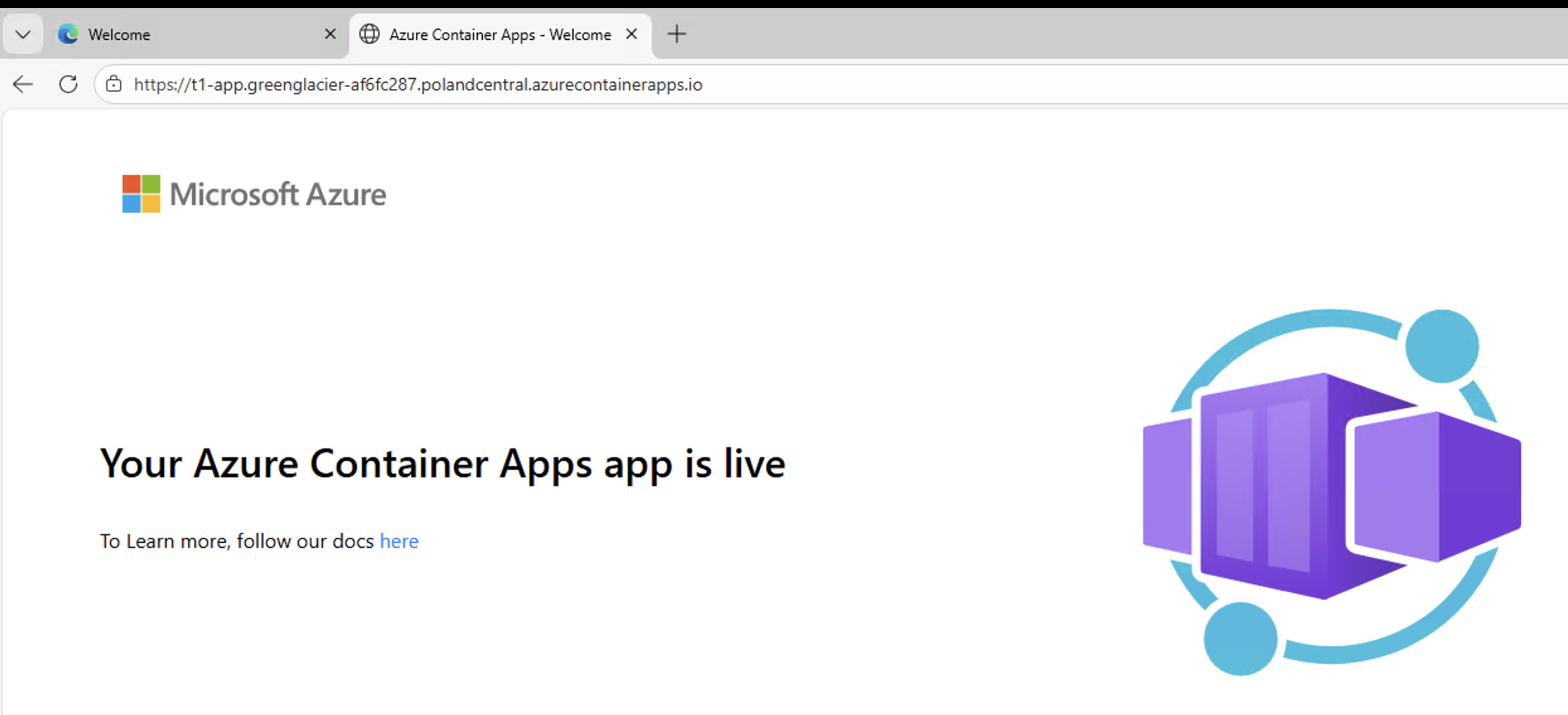
https://{prefix}-app.{aca_env_default_domain}— find the exact FQDN in the Azure Portal under your Container App → Settings → Ingress - ✅ You should see the Container Apps Hello World page — served entirely over the private network
If DNS resolution fails, verify:
- The Private DNS Zone name exactly matches
azurerm_container_app_environment.aca_env.default_domain - The VNet link (
azurerm_private_dns_zone_virtual_network_link) is attached and shows Link Status: Completed - The wildcard A record (
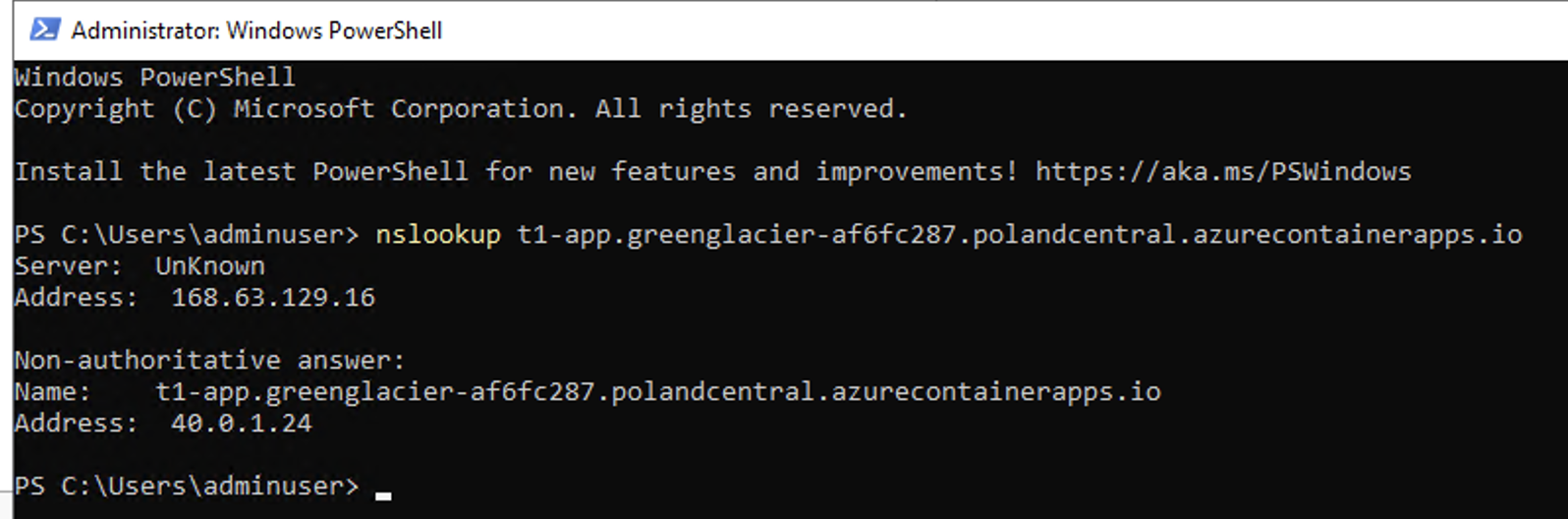
*) points toazurerm_container_app_environment.aca_env.static_ip_address - The nslookup command should return the private ip of the ACA, it should look like this when your setup is correct:
 when your setup is wrong:

Frequently Asked Questions
How do I make Azure Container Apps private using Terraform?
Set internal_load_balancer_enabled = true on azurerm_container_app_environment and attach the environment to a VNet subnet via infrastructure_subnet_id. Then create a Private DNS Zone matching the environment’s default_domain, link it to your VNet, and add a wildcard A record pointing to the environment’s static_ip_address.
What subnet size is required for Azure Container Apps VNet integration?
Azure Container Apps requires a dedicated subnet with a minimum size of /27 (32 addresses). A smaller subnet will cause the environment provisioning to fail.
Why do I need a Private DNS Zone for a private Container Apps environment?
With a private environment, Azure does not configure any public DNS entries. You must create a Private DNS Zone so that resources inside your VNet (like the jump host VM) can resolve the Container App’s hostname to its private IP address.
What is the difference between external_enabled = true and public internet access?
In a private Container Apps environment (internal_load_balancer_enabled = true), external_enabled = true on ingress makes the app reachable from anywhere in the VNet — but not from the public internet. The internal load balancer at the environment level blocks all public internet traffic regardless of the ingress setting.
Can I use Azure Bastion instead of a jump VM with a public IP?
Yes, and it is strongly recommended for production workloads. Replace azurerm_public_ip and the public IP assignment on the NIC with an azurerm_bastion_host in a dedicated AzureBastionSubnet. This eliminates the need to expose RDP to the internet entirely.
Summary
Here is a complete checklist for deploying a private Azure Container Apps environment with Terraform:
- ✅ Create a VNet with a dedicated
/27(or larger) subnet for ACA - ✅ Set
infrastructure_subnet_idon the Container App Environment - ✅ Set
internal_load_balancer_enabled = true - ✅ Create a Private DNS Zone using
aca_env.default_domainas the zone name - ✅ Link the Private DNS Zone to your VNet
- ✅ Create a wildcard
*A record pointing toaca_env.static_ip_address - ✅ Deploy a jump host in a separate VM subnet to test connectivity
- ✅ (Production) Replace public IP + RDP with Azure Bastion
- ✅ (Production) Replace hardcoded credentials with Azure Key Vault references